LogScore Manual
Hands-Free Page Turning
Turn PDF sheet music pages with face gestures, compatible AirPods head movement, or a Bluetooth pedal while playing from LogScore.
Open hands-free settings
- Open a PDF score and show the toolbar.
- Tap the hand icon.
- Turn on Hands-Free Page Turn.
- Choose Face, AirPods, or Pedal under Input Method.
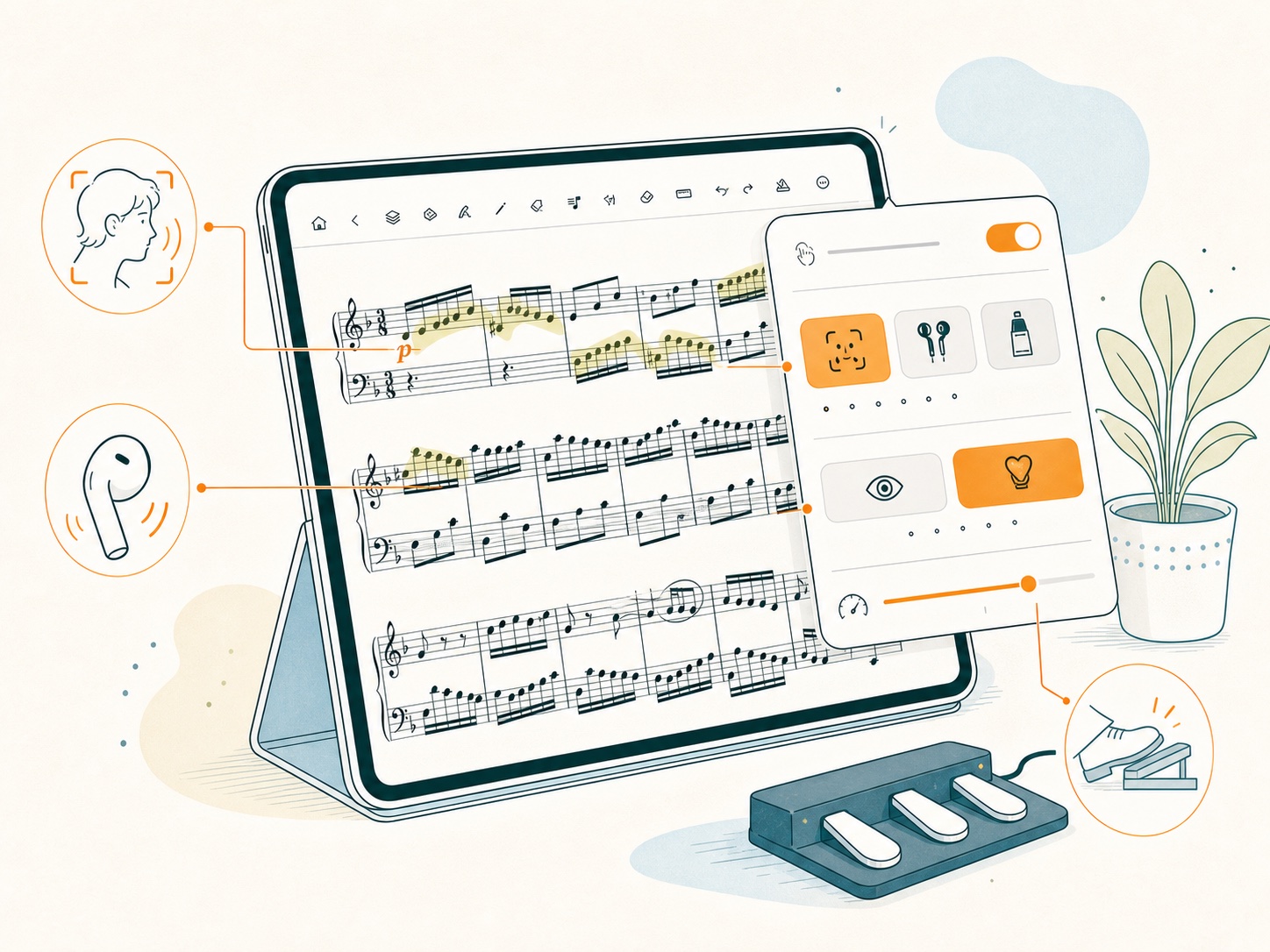
The panel shows whether Face or AirPods input is supported on the current device. Hands-free settings are saved separately for each score. Closing the score releases camera and motion input; reopening the score restores the saved preference.
Use face gestures
Face input requires a device that supports Apple face tracking and permission to use the camera.
- Select Face.
- Choose Wink or Lips.
- For Wink, wink left for the previous page and right for the next page as shown on screen.
- For Lips, move the mouth left for the previous page and right for the next page.
- Adjust Sensitivity.
Use even front lighting and place the device where the front camera can see the face directly. After triggering a page, return to a neutral expression before repeating the gesture. If pages turn accidentally, move the sensitivity toward requiring a stronger gesture. If deliberate gestures are missed, move it toward easier recognition.
Face data is processed in real time on the device for page-turn detection. The app does not save a face image as part of the score or practice log.
Use compatible AirPods head movement
- Connect compatible AirPods that provide headphone motion data.
- Select AirPods.
- Hold the head in a comfortable neutral position.
- Select Calibrate from Current Position.
- Turn the head left or right to move to the previous or next page.
- Return to neutral before the next turn.
Recalibrate after changing posture, seat height, or device position. If the panel reports that AirPods input is unsupported, confirm that compatible AirPods are connected and that Motion & Fitness permission is available.
Automatic suspension
Hands-free sensors pause temporarily while the Home panel, recording panel, or metronome panel is covering the score. They resume with the previous score-specific setting when the panel closes. Sensors also release when the app leaves the foreground and resume when appropriate.
Privacy and battery considerations
Face input uses the front camera while active; AirPods input uses motion data. Turn Hands-Free Page Turn off when it is not needed. Prolonged camera use can increase battery consumption and device temperature. The face session may pause if the device reaches a serious thermal state.