한국어 English

LogScore User Manual

A web manual for score viewing, annotation, hands-free page turning, metronome practice, recording, practice logs, and iCloud sync on iPad and iPhone.

Library Viewing and annotation Layers Hands-free Metronome Recording Practice logs Today and counter iCloud sync Saved items Troubleshooting FAQ

Quick Start

Quick start

When using LogScore for the first time, follow these steps.

01

Add a score

On the Scores screen, choose File Import or IMSLP.

02

Open a score

Tap a PDF in your library. Use the top tabs to switch between open scores.

03

Annotate

Use the pen, highlighter, eraser, and layer tools to mark the score.

04

Practice tools

Enable hands-free page turning, the metronome, or recording when needed.

05

Review progress

Check practice time, streaks, and repeat counts in Practice Logs and Today.

Scores

Score library and import

Add PDFs, organize them into folders, and open the score you want to practice.

File import

Select a PDF from the Files app and add it to your library.

IMSLP

Search IMSLP and import public-domain scores.

New folder

Create folders by composer, lesson, recital, or any system you prefer.

Sort

Change the display order of uncategorized scores.

Bottom menu

Move between Scores, Practice Logs, Today, Counter, and Metronome.

LogScore score library and import screen

Annotation

Score viewing and annotation

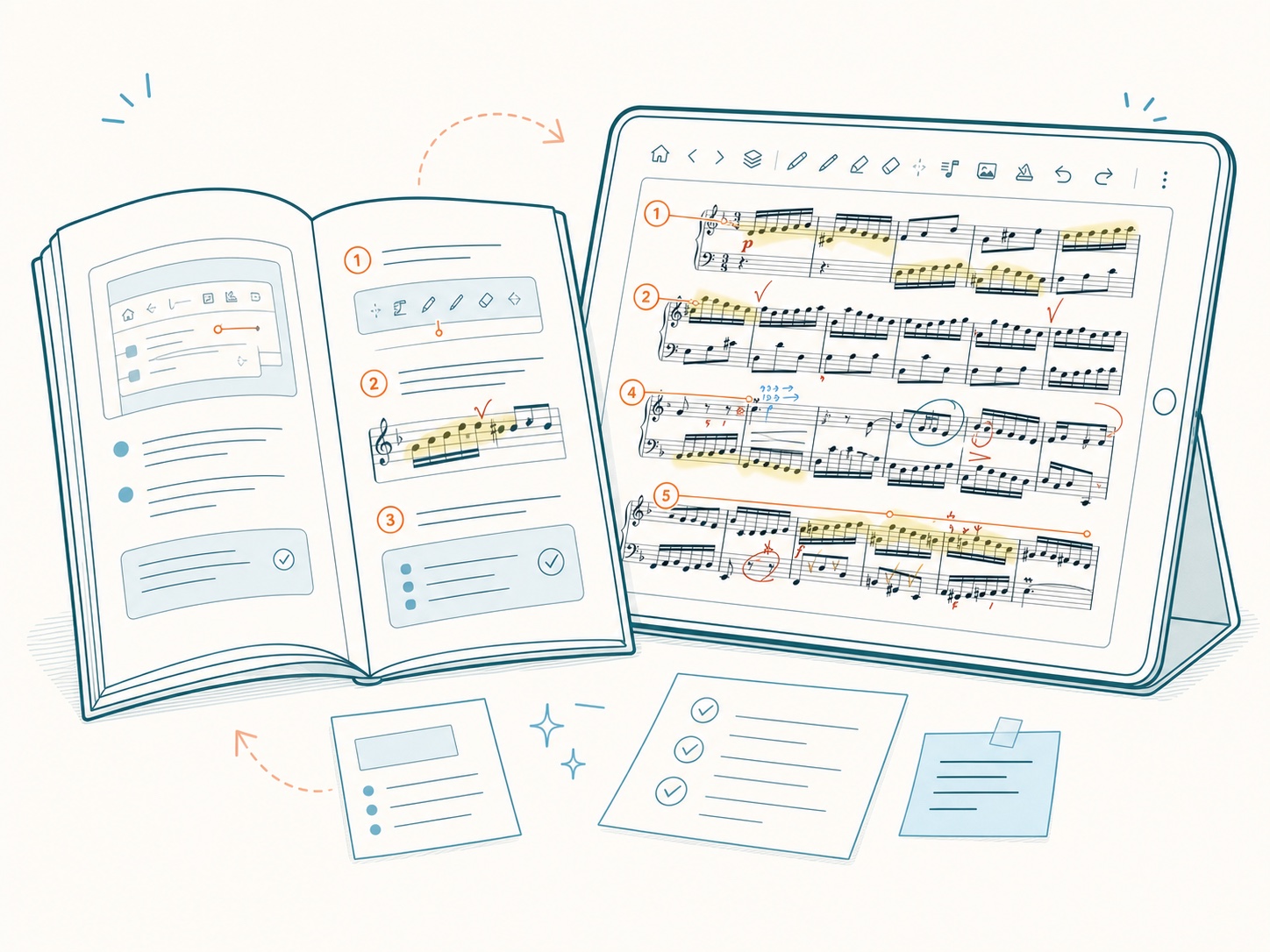
View the score at a comfortable size and mark it with Apple Pencil or your finger.

Practice timer

When you tap Start Practice in Practice Logs, the running time appears on the score screen.

Highlighter

Mark phrases or passages with translucent color.

Pen annotation

Write fingerings, dynamics, interpretation notes, and reminders freely.

Multiple colors

Use recent colors and pen settings to separate different kinds of information.

Saved per score

Annotations and editing settings are saved with the current score.

LogScore score viewing and annotation screen

Layers

Annotation layers

Separate fingerings, dynamics, voices, and other markings so complex scores stay organized.

Open layers

Tap the overlapping-squares icon to show the layer list.

Active layer

New annotations are recorded on the checked layer.

Rename

Use the pencil icon to rename a layer.

Show or hide

Use the eye icon to temporarily hide or show annotations by layer.

Add layer

Create a new layer for a specific annotation purpose.

Delete active layer

Delete the selected layer after checking that you no longer need its markings.

LogScore annotation layer management screen

Hands-Free

Hands-free page turning

Turn pages during performance with face gestures, AirPods, or a pedal without touching the screen.

LogScore hands-free page turning settings screen
Enable feature

Turn hands-free page turning on or off.

Face

Use the front camera to recognize wink or mouth gestures. Face data is processed in real time on the device and is not saved.

AirPods

Use supported AirPods gestures as the input method.

Pedal

HID pedals such as PageFlip or AirTurn can be used after pairing them in iPad Bluetooth settings.

Choose gesture

Select wink or mouth movement. The left gesture turns to the previous page and the right gesture turns to the next page.

Sensitivity

Lower it if accidental turns happen often, or raise it if recognition is difficult.

Metronome

Metronome

Set the tempo, meter, subdivision, and accents for the current score and start a practice session.

Preset list

Load saved metronome settings.

Additional settings

Adjust sound, volume, flash, and practice mode.

Beat accents

Set each beat to strong, normal, or silent.

Meter

Select the numerator and denominator.

Subdivision rhythm

Choose how each beat is subdivided.

Tempo

Adjust BPM with the decrease/increase buttons or circular control.

Start/stop

Start or stop metronome playback.

Tap tempo

Tap repeatedly at the desired speed to set BPM.

LogScore metronome settings screen

Recording

Practice recording

Record while viewing a score and compare previous recordings linked to the same score.

Recording status

Shows the score name and current recording state.

Elapsed time

Check the duration of the current recording.

Previous recordings

Identify earlier recordings by date, name, and length.

Recording menu

Expand an item to play, rename, delete, or perform other actions.

Stop

Use the red stop button to finish and save the recording.

LogScore practice recording screen

Practice

Practice logs

See today's practice, streaks, total time, and recent practice patterns at a glance.

Change date

Use the left and right arrows to change the reference date.

Streaks

Check your current streak and best streak.

Today's log

View the practice time for the selected date.

Total time

View total saved practice time.

Recent practice

Darker colors indicate more practice time on that date. The day boundary is 4 a.m.

Start practice

Start the practice timer.

LogScore practice logs screen

Today

Today and song counter

Choose today's practice pieces and quickly record completion and repeat counts.

Date

View the practice list for the selected date.

Completion check

Check off a piece when practice is finished.

Add count

Increase the repeat count by one.

Decrease count

Decrease the count by one if it was entered incorrectly.

Song menu

Open piece-specific actions such as rename, mark complete, or organize list.

Add song

Add a new piece to practice today.

LogScore Today and song counter screen

iCloud

iCloud sync across devices

Continue using scores, annotations, and practice information on iPad and iPhone with the same Apple Account.

Same score tabs

Scores opened on iPad also appear on iPhone.

Page position

Check the current page and per-score viewing state.

Layers

Turn synced annotation layers on and off.

Annotations

Annotations created on another device appear on the same score.

LogScore score view continuing on iPhone

Saved State

Saved items per score

When you reopen a score, LogScore restores the last working state for that score.

CategorySaved contentScope
AnnotationPen width, opacity, colors, recent colors, highlighter, eraser mode and size, sticker settings, two-page viewPer score
LayersLayer names, visibility, active layer, annotations by layerPer score
Hands-freeEnabled state, face, AirPods, pedal, wink, mouth movement, sensitivityPer score
MetronomeBPM, meter, subdivision rhythm, beat accents, sound, volume, flash, practice modePer score
Practice logsPractice date and time, streaks, Today checks, repeat countsAccount/device data
RecordingsScore link information and audio filesDepends on device storage and sync policy

Troubleshooting

Sync checks and troubleshooting

Both devices must use the same Apple Account and have iCloud Drive enabled.

  1. Apple AccountConfirm that iPad and iPhone use the same Apple Account at the top of Settings.
  2. iCloud DriveIn Settings > Apple Account > iCloud, confirm that iCloud Drive and LogScore are enabled.
  3. App versionUpdate LogScore to the latest version from the App Store on both devices.
  4. Sync statusIn LogScore Settings > iCloud Sync, check that sync is complete.
  5. NetworkConnect both devices to stable Wi-Fi and keep the app open for a while.
  6. RetryIf sync failed, check the diagnostic code and tap Sync Now.

FAQ

Frequently asked questions

Start with these checks when something does not work as expected.

A PDF will not open.

Check that the file is a valid PDF and is not password-protected. Try opening it in the Files app first, then import it again.

Page turning does not work.

Confirm that the PDF has at least two pages, then reselect the hands-free input method, gesture, and sensitivity.

Face gestures are not recognized.

Check camera permission, lighting, distance from the camera, and the selected left/right gesture.

The pedal does not respond.

Check the pedal connection in iPad Settings > Bluetooth. HID pedals work without additional app setup.

My annotations seem to be missing.

Check whether the eye icon is off in the Layers panel or whether a different layer is active.

Metronome settings changed.

Check that the currently opened score is the intended one. Metronome settings are saved per score.

Recording does not start.

Check microphone permission and available device storage.

Data does not appear on another device.

Follow the sync troubleshooting steps above and run Sync Now.