LogScore Manual
Layers, Symbols, Text, Images, and Links
Separate PDF score markings into layers and add music symbols, text boxes, images, and web links while practicing in LogScore.
Why use annotation layers
Layers let several sets of markings occupy the same PDF page without becoming one permanent drawing. A pianist might keep fingering, dynamics, teacher comments, and formal analysis on separate layers, then show only the information needed for the current practice session.
Create and select a layer
- Tap the stacked-squares layer button.
- Select Add Layer.
- Tap the circle beside a layer to make it active.
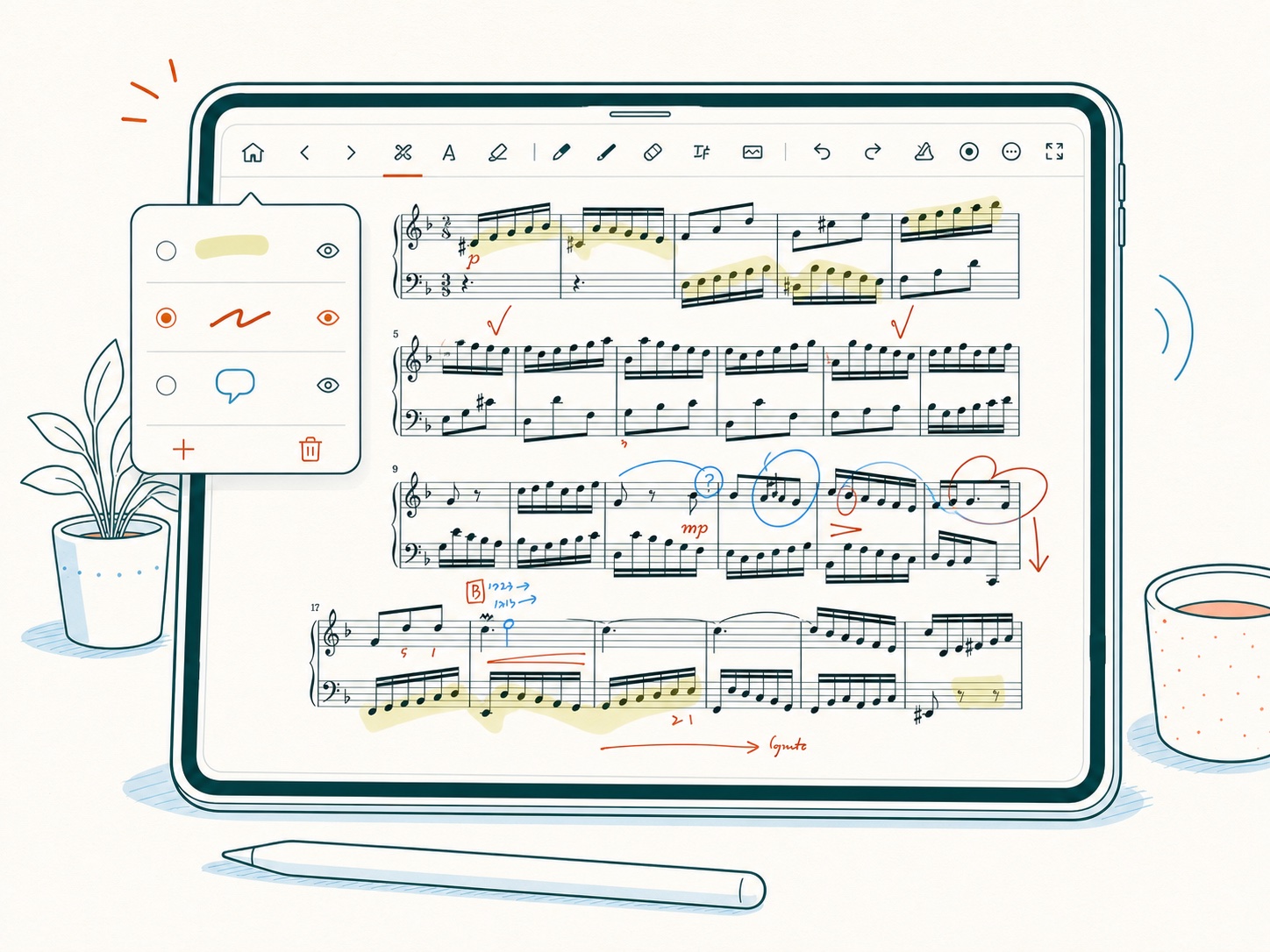
New drawings, text, symbols, and images are associated with the active layer. The active layer must be visible before new layer-based annotation can be placed.
Rename, hide, and delete layers
- Select the pencil beside a layer to rename it.
- Select the eye to hide or show that layer.
- Select Delete Active Layer to delete the selected layer and its contents.
LogScore always retains at least one layer. Deleting a layer is destructive; hiding it is the safer choice when you may need its notes again.
Add music symbols and practice stickers
- Select the music-symbol tool.
- Choose a color from the symbol tray.
- Select a symbol.
- Tap the desired position on the PDF page.
- Select the placed symbol to move, resize, or delete it.
Symbols are stored separately from freehand drawing but follow layer visibility. Use them for repeat reminders, musical signs, or consistent visual markers.
Add a text box
- Select the Text tool.
- Tap an empty position on the page.
- Type the note.
- Tap outside the editor to commit the text.
Tap a committed text box once to select it. Tap the selected box again to edit it. Drag a selected box to move it, use its side handles to change its width, or select the red delete button to remove it. Text is assigned to the active annotation layer.
Add an image
- Select the photo button.
- Choose Photo Album or File.
- Select an image.
- Place it on the page.
- Select the image to move, resize, or delete it.
Use images for a teacher’s marked example, a fingering diagram, or another visual reference. Large images increase the score’s stored data and may take longer to sync.
Add a web link to a position on the score
- Open the ellipsis menu.
- Select Link or Add Link.
- Tap the location on the score where the link icon should appear.
- Enter a complete URL beginning with
https://and select Save.
In editing mode, tap the link icon to open, change, or delete the URL. In viewing mode, tapping the icon opens the saved address. Link markers are positioned on the page independently of annotation layers.
If annotations seem to be missing
Open Layers and check every eye icon. Confirm that you opened the intended score and that a different layer is not active. A hidden layer preserves its contents; a deleted layer does not.