LogScore Manual
Practice Recording
Record a performance from the LogScore sheet music viewer, play it back, skip 15 seconds, rename, share, and manage recordings by score.
Start a recording from a score
- Open the score.
- Show the toolbar.
- Tap the recording-circle icon.
- Select the microphone button at the bottom of the recording panel.
- Allow microphone access when requested.
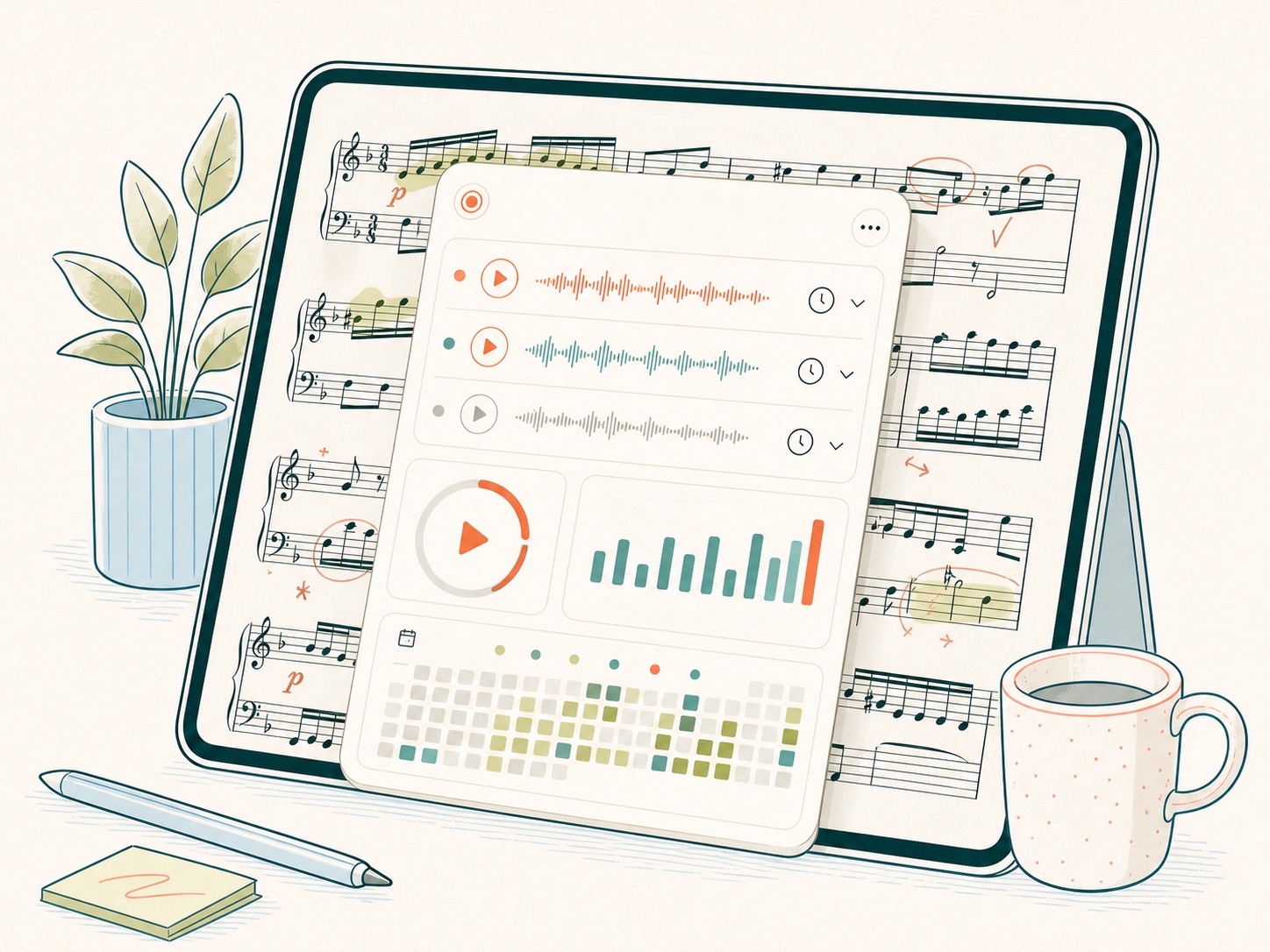
The panel displays the score title and a live elapsed-time counter. The toolbar recording icon becomes red while recording.
Stop and save
Tap the red stop button. Recordings shorter than approximately two seconds are discarded. Longer recordings are saved as high-quality mono AAC audio and linked to the current score.
If a phone call or system audio interruption stops recording, LogScore attempts to end and save the usable recording rather than leaving an incomplete active session.
Review a recording
Tap a recording row to expand it. The player provides:
- play and pause;
- 15-second back;
- 15-second forward;
- elapsed and remaining time;
- rename;
- share through the iOS share sheet;
- permanent deletion.
The default recording name combines the score title and recording date. Rename it to describe the take, passage, or tempo.
View recordings from every score
Open the root Scores library and tap the stacked-player icon at the top left. All Recordings groups audio by score. If the original score was deleted, its recordings remain under Deleted Score until separately deleted.
If recording does not start
- In iOS Settings, allow microphone access for LogScore.
- Check available device storage.
- Stop another app that is using an exclusive audio session.
- Disconnect and reconnect an external microphone if the audio route is unstable.
- Close the recording panel and try again after an interruption.