LogScore Manual
Getting Started
Set up LogScore, import a PDF score, open the sheet music viewer, add Apple Pencil notes, and start a metronome or practice timer.
What you can do in LogScore
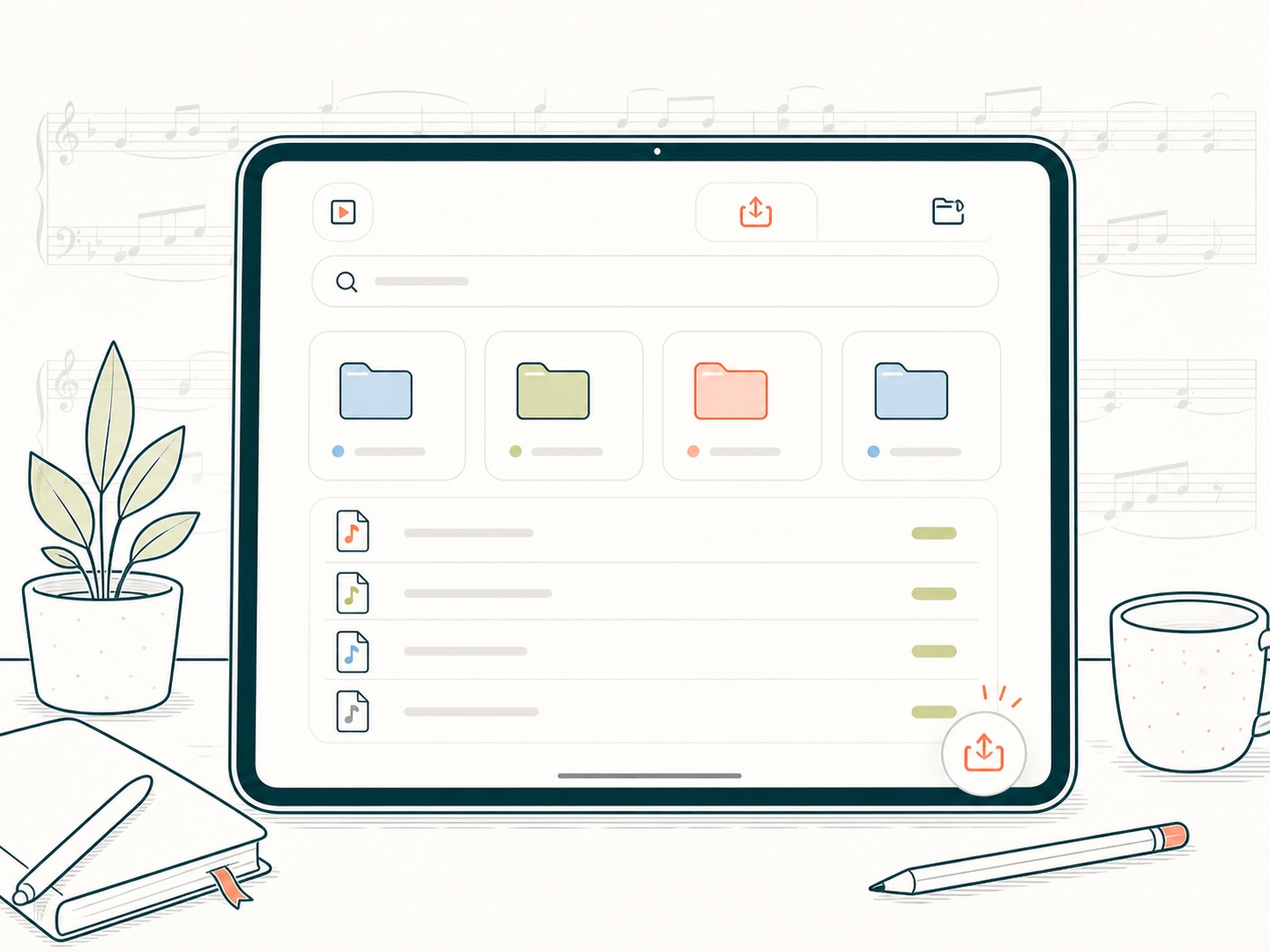
The Scores tab is your PDF sheet music library. Opening a score takes you to the full-screen score viewer. Tap the score once to reveal the editing toolbar, where you can navigate pages, annotate, manage layers, record, open the metronome, or configure hands-free page turning.
The bottom navigation in the Home panel contains five areas:
- Scores — import, search, organize, open, move, and delete scores.
- Practice Journal — start and review timed practice sessions, streaks, total time, the practice calendar, and statistics.
- Today — maintain a dated list of practice tracks and mark them complete.
- Counter — count repetitions with a large tap target.
- Metronome — use the full metronome without first opening a score.
First-use walkthrough
When LogScore first opens, the introduction presents the library, annotations, hands-free page turning, and practice history. Select Continue to move through it or Skip to enter the app immediately. You can replay the introduction later from Practice Journal > Settings > Replay Introduction.
Five-minute quick start
- Open the Home panel and select Scores.
- Tap the import button at the top right.
- Select Import File and choose a PDF in the Files picker.
- On the Score Info screen, enter a title. Composer and folder are optional.
- Save the score. LogScore opens it in the PDF score viewer.
- Tap the score once to show the toolbar.
- Select the pen, pencil, or highlighter and choose a color, width, and opacity.
- Write on the score with Apple Pencil.
- Select the metronome icon to set a BPM and time signature for this score.
- Return to Practice Journal and select Start Practice when you want LogScore to time the session.
Full-screen viewing and editing
The viewer opens with the music occupying as much space as possible. Tap the page once to enter editing mode and show the toolbar. Select the expand icon at the right end of the toolbar to return to the cleaner viewing mode. A drawing tool is active only when its toolbar icon is highlighted.
Settings remembered for each score
LogScore keeps the working context attached to the score. This includes the last viewed page, annotation layers, drawing content, text, symbols, images, links, two-page preference, hands-free input settings, and score-specific metronome configuration. Opening a different score loads that score’s own context.