LogScore Manual
Metronome
Set BPM, meter, subdivisions, beat accents, sounds, visual flash, saved sessions, and progressive or silent rhythm training in LogScore.
Open the metronome from the bottom Metronome tab or tap the metronome icon while viewing a score. When opened from a score, tempo and rhythmic settings are restored for that score.
Start, stop, and change tempo
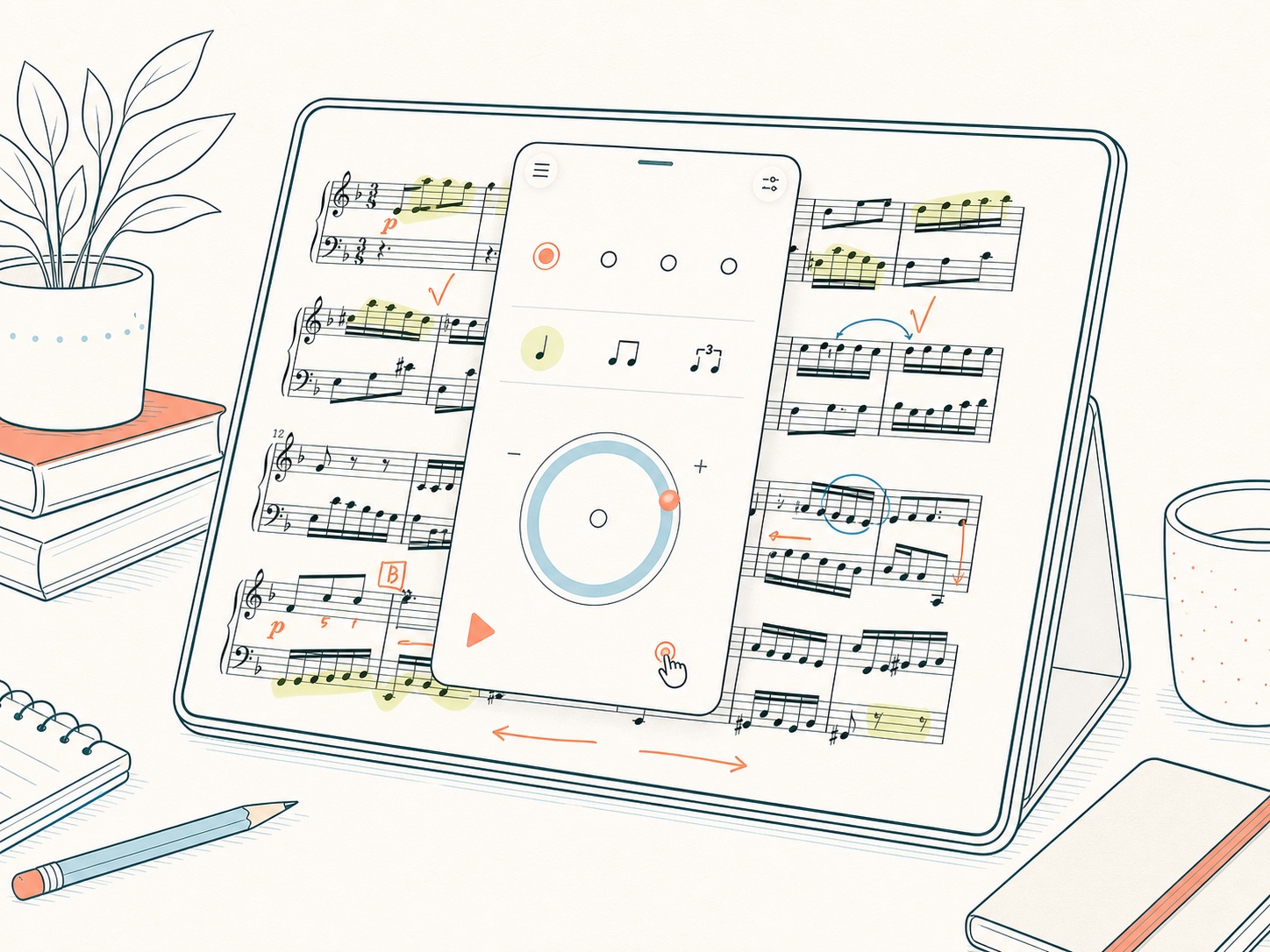
- Tap the triangular play control to start or pause.
- Use minus or plus for one-step BPM changes.
- Drag the circular BPM control for a larger change.
- BPM ranges from 20 to 400.
- Tap the hand button repeatedly at the intended pulse to use Tap Tempo. Keep tapping until LogScore has enough intervals to calculate a stable BPM.
The traditional Italian tempo name, such as Andante or Allegro, changes with BPM and is a reference rather than a performance rule.
Choose a time signature
- Tap the displayed signature, such as
4/4. - Select the numerator and denominator.
- Apply the setting.
Common signatures include 2/4, 3/4, 4/4, 6/8, and 12/8, with additional numerator and denominator choices available in the selector.
Set beat strength
The beat circles represent beats in the bar. Tap a beat to cycle through accent, strong, weak, and silent states. Use this to emphasize a secondary accent, suppress an internal beat, or hear only selected points in a long meter.
Choose a subdivision
Tap the note-value control and choose how one beat is divided. Available patterns include:
- one sound per beat;
- two equal parts;
- a rest followed by the second half;
- triplets;
- triplets with the first, middle, last, or outside positions silent;
- four equal sixteenth-note parts;
- alternating sixteenth-note patterns;
- uneven quarter and half-beat combinations.
Subdivision changes the internal click pattern without changing the displayed BPM.
Sound and visual settings
Tap the ellipsis at the top right. In sound settings you can:
- enable or disable sound;
- choose Mechanical, Woodblock, Marimba, Digital, or Percussion sound families;
- adjust Volume;
- adjust Accent Gain;
- enable Beat Flash;
- select Apply.
Sound preference is used as the default across the app, while score-linked tempo, signature, subdivision, beat pattern, and training configuration follow the active score or saved session.
Saved sessions and Today tracks
Tap the list button at the top left to open the metronome library. It combines Today Tracks and Saved Sessions. Load a track or session to recall its BPM and meter. If the current configuration has unsaved changes, LogScore asks whether to name and save it before opening the library; choose Skip if it should not become a saved session.
Rhythm Training: Phrase Length
Phrase Length stops or completes a defined practice span based on bars or time. Choose Phrase Length, select By bars or By time, and enter the length. Use it for a fixed number of repetitions through a passage or a focused timed interval.
Rhythm Training: Progressive Tempo
Progressive Tempo raises the BPM in steps.
- Choose Progressive Tempo.
- Select whether changes occur by bars or by elapsed time.
- Set Step, the BPM increase each time.
- Set Interval, the number of bars or seconds between increases.
- Set Max BPM, the ceiling.
- Apply and start the metronome.
Begin at a tempo where the passage is controlled. A small step and realistic maximum are safer than a rapid increase that encourages tension or errors.
Rhythm Training: Mute Pattern
Mute Pattern alternates audible and silent periods so you must maintain the pulse internally.
- Choose Mute Pattern.
- Select bars or time as the basis.
- Set the audible Sound length.
- Set the Silent length.
- Apply and start.
The training status below the session title shows progress or remaining time. Tap the active training control again to disable training.
Background and Lock Screen behavior
When supported by the current system state, metronome playback can remain controllable through system media controls, Dynamic Island, or a Live Activity. If playback pauses after a call, Siri, audio-route change, or another audio interruption, return to LogScore and restart it.