LogScore Manual
Import PDF Sheet Music
Import PDF sheet music into LogScore from Files, iCloud Drive, a document scan, a public PDF URL, or IMSLP.
Open the import menu
- Open the Home panel.
- Select the Scores tab.
- Tap the downward-arrow import button at the top right.
- Choose Import File, Scan Document, or Enter URL. IMSLP has a separate button beside the import menu.
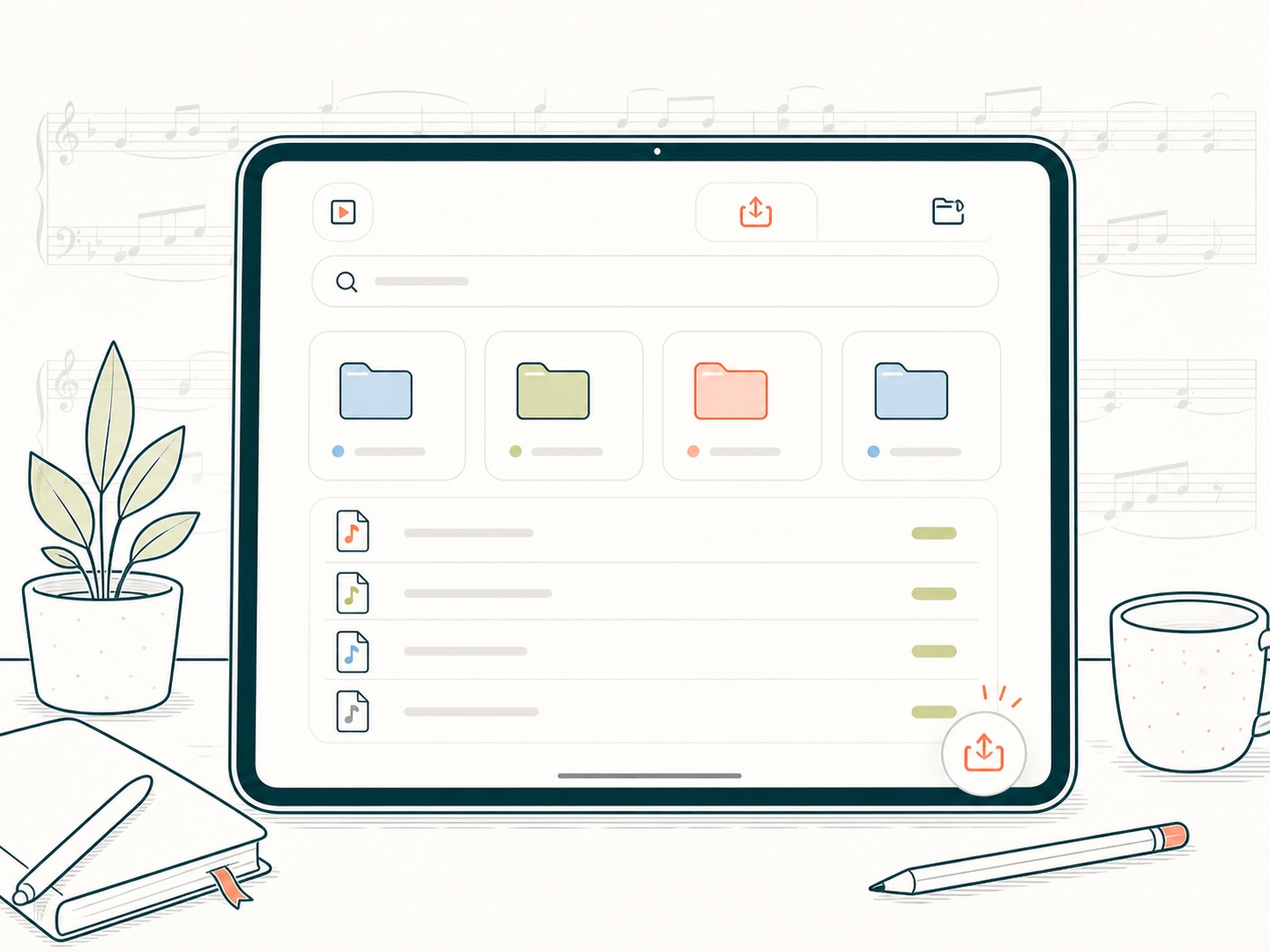
After LogScore receives a document, the Score Info screen lets you confirm the title, add an optional composer, and choose a folder. A title is required. You can create a new folder from this screen or leave the score in Uncategorized.
Import a PDF from Files or iCloud Drive
- Select Import File.
- Browse On My iPad, iCloud Drive, or another location available in Apple’s Files picker.
- Select the PDF.
- Wait if the file still needs to download from its cloud provider.
- On Score Info, correct the title, enter the composer if useful, and select a folder.
- Save the score.
The source document is copied into LogScore’s app storage. Editing or deleting the original file in Files does not edit the imported LogScore copy.
Scan paper sheet music
- Select Scan Document.
- Place the page on a flat, evenly lit surface.
- Capture each page in order using the document scanner.
- Review the page boundaries and retake any blurred or incomplete page.
- Finish the scan.
- On Score Info, replace the default title Scanned Score, add a composer, and choose a folder.
Multiple scanned pages become one PDF score. For reliable hands-free turning, check page order before saving.
Import from a direct PDF URL
- Select Enter URL.
- Paste a public direct link ending in
.pdf. - Continue to download the file.
- Complete Score Info and save.
The URL must point directly to a publicly downloadable PDF. A web page containing a download button is not the same as a direct PDF URL. Google Drive or Dropbox links that require sign-in will not work. If you control a Google Drive file, make it publicly accessible and use a direct download link.
Import public-domain sheet music from IMSLP
- Tap the IMSLP button in the Scores toolbar.
- Search by work, composer, or another term.
- Open the desired work and edition.
- Follow IMSLP’s download and copyright notices.
- Choose the PDF to import.
- Confirm Import PDF.
- Complete the title, composer, and folder in Score Info.
LogScore provides access to the IMSLP browsing and download flow but does not determine whether an edition is public domain in your country. Follow the rights information displayed by IMSLP.
If an import fails
- Confirm that the document is a valid, non-password-protected PDF.
- Open it once in Files to make sure the cloud download has completed.
- For a URL, confirm that it ends in
.pdfand does not require a login. - Confirm that the device has enough free storage for the PDF and its future annotations.
- If a scan is unavailable, confirm that document scanning is supported on the device.