LogScore Manual
Read and Navigate PDF Sheet Music
Open, zoom, navigate, jump between pages, use landscape two-page view, and switch between PDF score tabs in LogScore.
Open a score
Tap a PDF in the Scores library. LogScore closes the Home panel and opens the score. When reopened, the score returns to its last saved page.
Show or hide the viewer toolbar
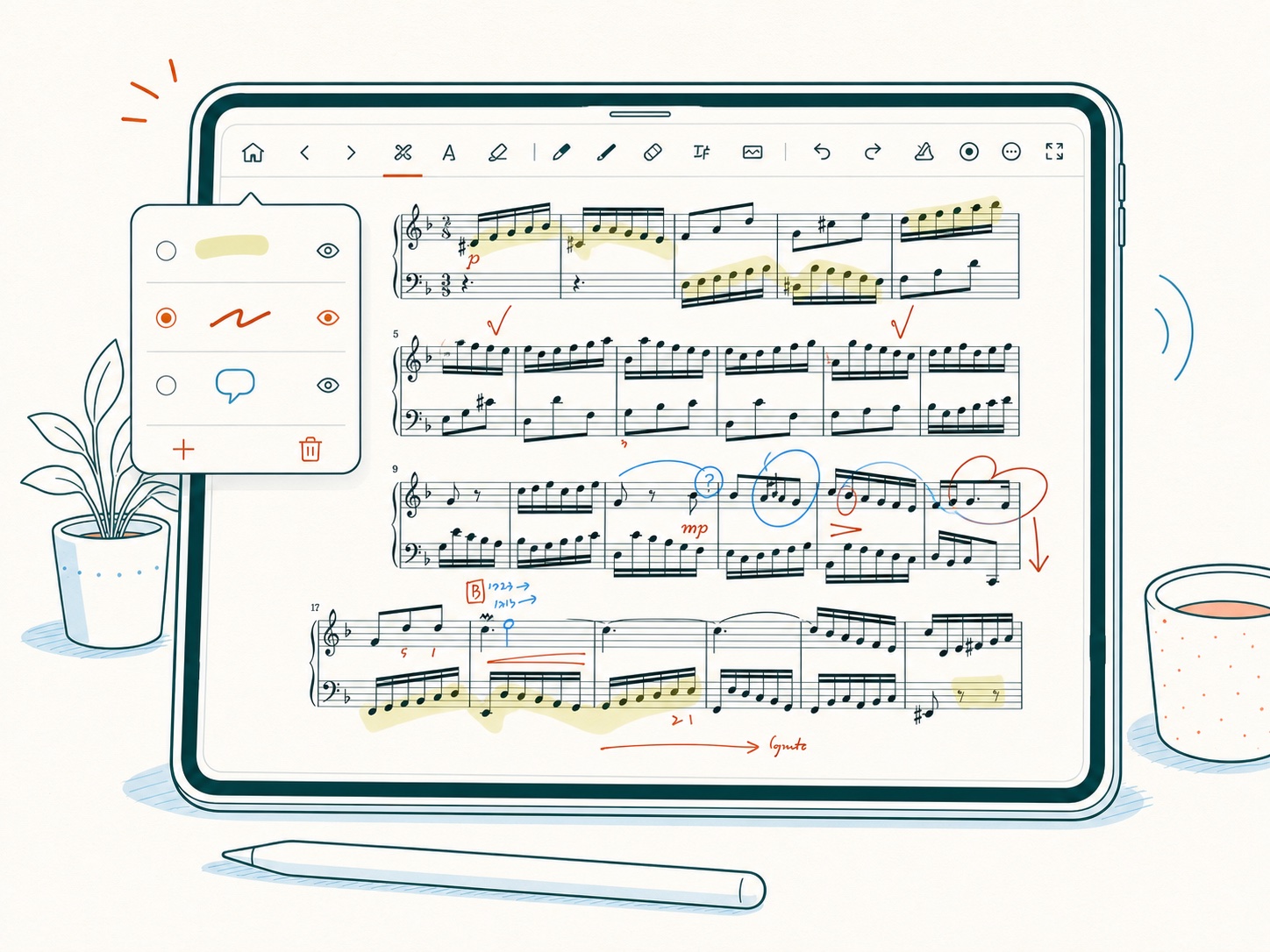
Tap the score once to show the editing toolbar. Select the expand icon at the far right to return to full-screen viewing. When the toolbar is wider than an iPhone screen, swipe the toolbar horizontally to reach controls that are off screen.
Turn pages manually
- Use the left and right chevrons in the toolbar.
- Use a paired HID page-turner after enabling the Pedal hands-free source.
- Use configured face gestures or compatible AirPods head movement.
- Hardware keyboard page commands can act as previous and next page when pedal input is active.
The previous-page button is disabled on the first page, and the next-page button is disabled on the last page.
Jump directly to a page
- Tap the page indicator, such as
12/48. - Enter the target page number.
- Select the return-arrow button.
The entered number is limited to the available page range.
Zoom and move around the page
Use the standard iOS pinch gesture to zoom. When zoomed in, drag to reposition the page. Exit an active drawing tool if a gesture is interpreted as annotation instead of navigation.
Use two-page view in landscape
- Leave editing mode and rotate the device to landscape.
- Tap the page-layout button near the top right.
- Switch between one-page and two-page display.
Two-page display is available in landscape viewing mode, not while the annotation toolbar is active. The preference is remembered for the score.
Switch between open scores
Use the top score tabs to change the active score. Before switching, LogScore saves pending annotation changes. Each score retains its own page position, annotation state, hands-free configuration, and metronome settings.