LogScore Manual
Annotate PDF Sheet Music
Write fingerings and practice notes on PDF sheet music with pen, pencil, highlighter, colors, width, opacity, erasers, ruler, undo, and redo.
Enter annotation mode
- Open a score.
- Tap the page once to show the toolbar.
- Select a visible annotation layer.
- Select Pen, Pencil, or Highlighter.
- Write on the page with Apple Pencil or the available touch input.
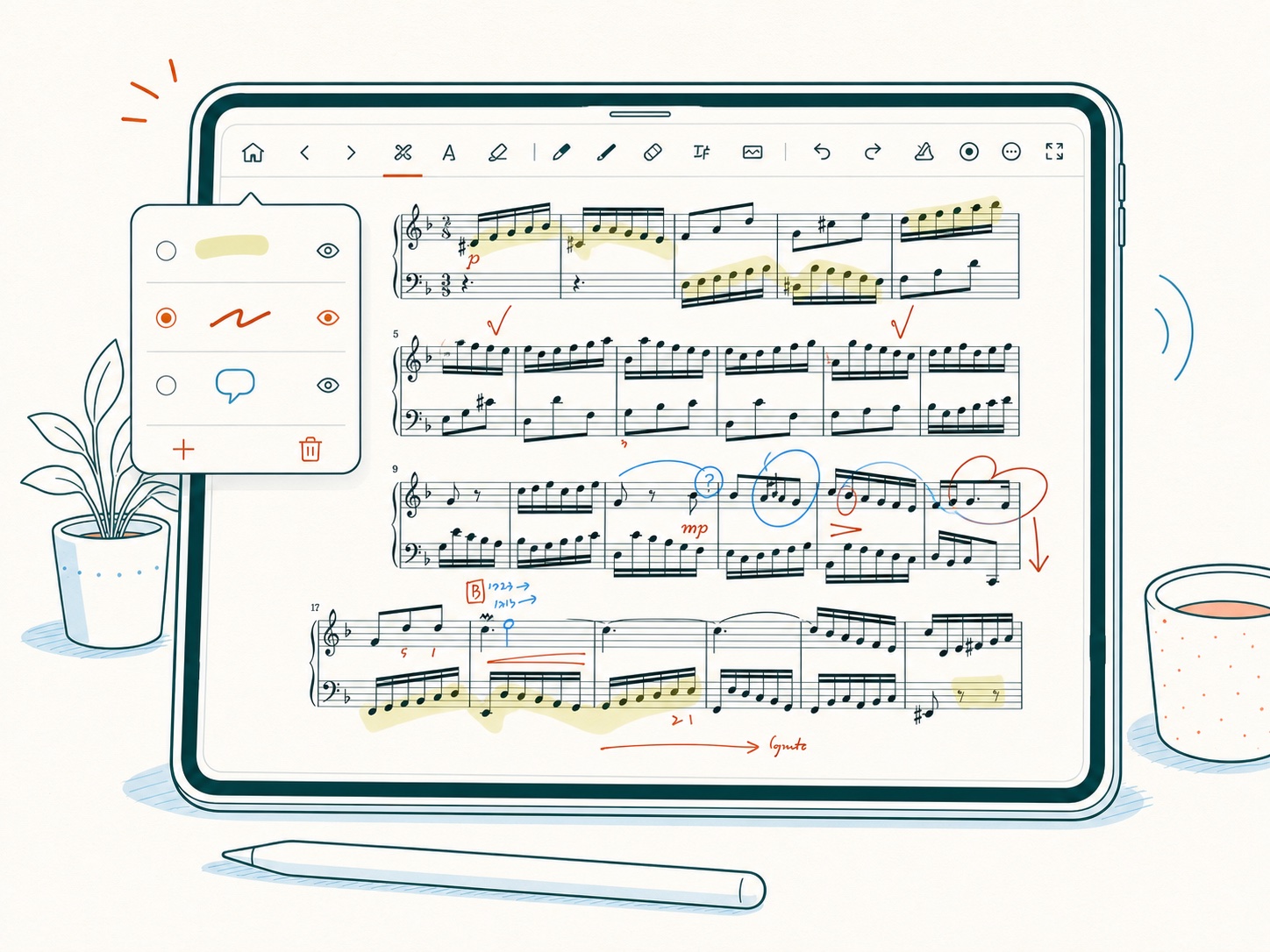
Selecting an already active drawing tool opens its options again. Selecting a different tool changes the active annotation tool.
Pen, pencil, and highlighter
- Pen is suitable for clear fingerings, analysis marks, and written reminders.
- Pencil provides a pencil-style mark for lighter notes.
- Highlighter places translucent color over passages without hiding the notation.
For any of these tools, choose one of the five recent colors or open the color picker. Adjust Width and Opacity with the sliders. The highlighter has its own width and opacity, so changing it does not make the pen unexpectedly wide or transparent.
Use recent colors
The options panel displays up to five recent colors. Tap a recent color to select it and close the panel, then begin writing. Use color consistently—for example, blue for fingering, red for corrections, and green for interpretation—to make layers easier to understand later.
Erase annotations
Select the eraser and choose an Eraser Mode:
- Area removes the portions touched by the eraser.
- Stroke removes an entire drawn stroke when it is touched.
Adjust Size to change the eraser target. If a small correction removes too much, undo it and use a smaller Area eraser.
Draw straight lines with the ruler
Select the ruler icon to activate or deactivate the on-screen ruler. Move and rotate it into position, then draw along its edge. The ruler is useful for analysis brackets, phrase boundaries, and alignment marks.
Undo and redo
Use the curved left arrow to undo the most recent supported editing action and the curved right arrow to redo it. Undo history belongs to the current editing session; it should not be treated as a permanent version history or backup.
How annotations are saved
LogScore saves drawing data with the score and layer. Switching scores or closing the editor triggers saving of pending changes. If saving fails because storage is full or file access is restricted, LogScore displays Save Failed. Free storage and avoid deleting or replacing app files externally before continuing.