Choose a screenshot
Tap Choose on iPhone or Choose screenshots on Android, then select one image.
ShotDo 1.0 · iPhone & Android
Learn the complete path from importing a screenshot to reviewing the suggestion and remembering it at the right time.
01 · Quick Start
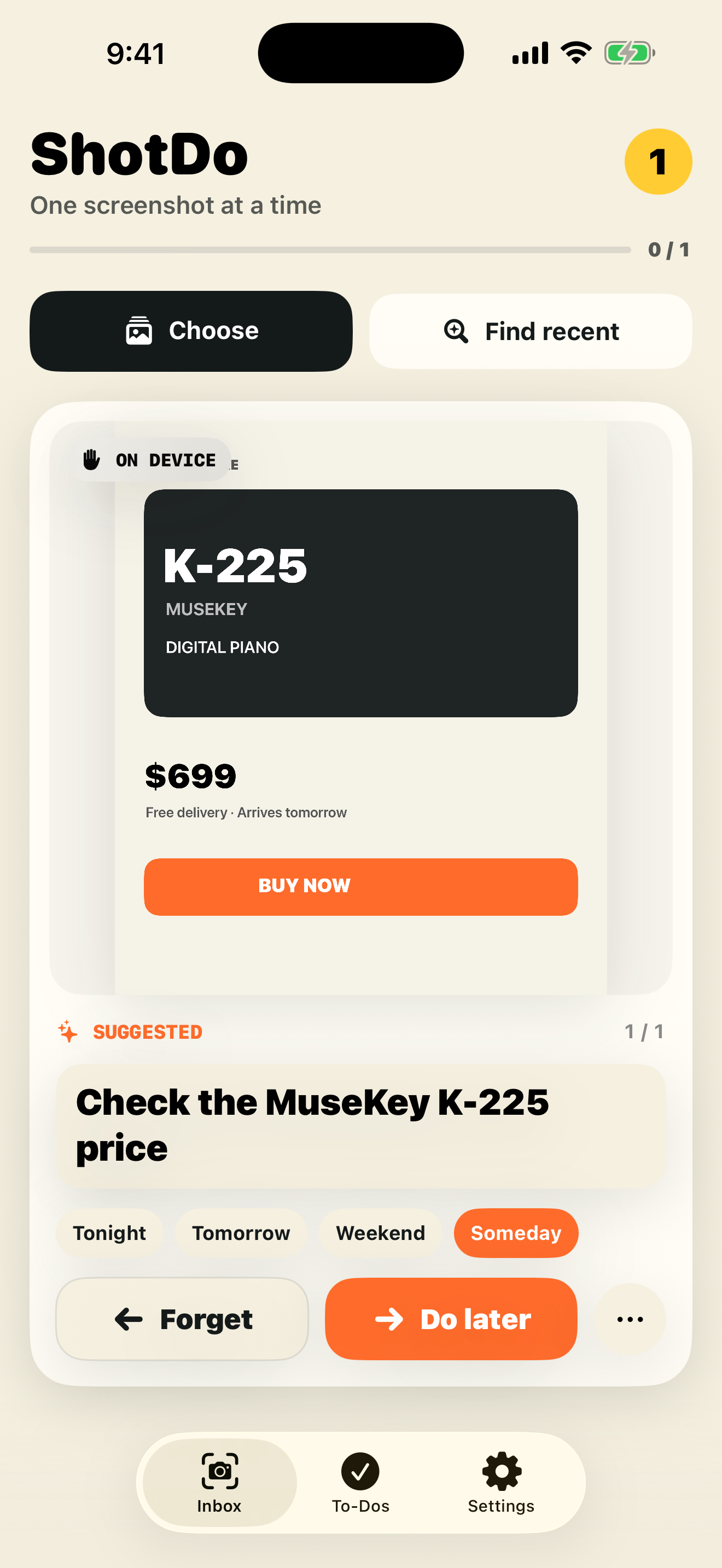
After the first-run introduction, ShotDo opens to the Inbox.
Tap Choose on iPhone or Choose screenshots on Android, then select one image.
ShotDo reads the image on the device and proposes a title. Edit it immediately if it does not match your intention.
Select Tonight, Tomorrow, Weekend, or Someday. You can set an exact date and time after saving.
Tap Do later to save it in To-Dos. If it has a reminder time, the operating system may ask for notification permission.
02 · Import
ShotDo imports only images you select or share. On iPhone, Find recent runs only after you tap the button.
| Method | iPhone | Android |
|---|---|---|
| Photo picker | Tap Choose and select screenshots. You can select up to 20 at a time. | Tap Choose screenshots and use Android Photo Picker. ShotDo does not request broad photo-library access. |
| Recent screenshots | Tap Find recent. This requires photo access and never scans in the background. | This option is not available. Use Photo Picker or Share. |
| Share | From Photos or another app, open Share for an image and choose ShotDo. | Use the image's Share menu and choose ShotDo. The shared image appears in the Inbox. |
03 · Review
The Inbox presents one screenshot at a time. Suggestions are drafts and are never confirmed automatically.
Review the imported screen itself. The original visual context matters more than any recognition result.
Tap What did you mean to do? and edit freely. A blank title cannot be saved.
ShotDo may suggest a date when the screen contains grounded evidence such as a deadline, reservation, or appointment. Ambiguous dates are left unset.
Move the item out of active review without creating a to-do. Use the immediate Undo action if you change your mind.
Save the current title and schedule in To-Dos. You can use the button or swipe the card to the right.
Choose Done already, Just keep, or Trash screenshot. Deleting an accessible original requires operating-system confirmation.
04 · Schedule & Reminders
Quick presets use the device's current calendar and time zone. For a precise deadline, open the saved to-do and choose an exact date and time.
A quick preset for something to revisit this evening. If the preset time has already passed, choose a custom future time.
A quick preset for something to revisit the next day.
A quick preset for something to handle during the nearest weekend.
Saves a to-do without a notification time.
Open a saved item in To-Dos and use Choose custom date & time or Custom date & time.
Remove the reminder in the to-do editor while keeping the title and attached screenshot.
05 · To-Dos
To-Dos separates open items from completed items.
Tap a to-do to review the screenshot, title, notes, schedule, and recognized text.
Change the title or notes, update the reminder with a preset or exact time, then save.
Tap the check button. The item moves to Done and its scheduled reminder is canceled.
Tap the undo button on a completed item to move it back to open To-Dos. A future reminder is scheduled again when applicable.
06 · Images
ShotDo stores a private copy of each imported image so the visual context remains attached to the to-do.
| Action | ShotDo data | Photo-library original |
|---|---|---|
| Complete a to-do | The completed item and private app copy remain. | ShotDo may ask whether to remove the original. Choosing delete requires system confirmation. |
| Trash screenshot | Removes the Inbox item and private app copy. | ShotDo requests deletion only when it can address the source. Some Photo Picker imports cannot be deleted by ShotDo. |
| Delete all ShotDo data | Removes Inbox items, to-dos, notes, reminders, and private app copies. | Original photos are kept. |
| Uninstall | The operating system removes ShotDo's local app data. | Original photos are kept. |
07 · Permissions & Privacy
ShotDo has no account, advertising, tracking, or developer-operated backend.
Choose uses the system picker. Find recent and original-image cleanup may require Photos permission.
ShotDo accesses only images selected through Android Photo Picker or Share. It does not request broad photo-library access.
Requested only when you save a to-do with a reminder. Reminder content and scheduling are handled locally by the operating system.
iPhone uses Vision and, when available, an Apple on-device model. Android uses ML Kit and, when available, Gemini Nano. Deterministic rules take over when a model is unavailable.
Screenshot pixels, recognized text, titles, notes, and reminder content are not sent to a developer-operated server.
ML Kit system components may process limited technical diagnostics such as feature versions, error codes, and input sizes. This does not include screenshot content or recognized text.
08 · Settings & Erase
Review Photos and Notifications status. Tap Open system settings to open the operating system's ShotDo settings.
Review the on-device processing statement and open the privacy policy.
Open the first-run explanation again.
Tap Delete all ShotDo data and confirm. This cannot be undone, and photo-library originals are kept.
09 · Troubleshooting
Open Settings → Open system settings and check Photos access. Confirm that images exist in the Screenshots album. Find recent runs only when you tap it.
Confirm that the item is a supported image and choose it again. An identical original that was already imported may be skipped as a duplicate. If needed, restart the app.
Recognition can be limited when text is small or the screenshot is mainly visual. Edit the title directly and set important dates in the to-do editor.
Confirm that the to-do has a future time and notifications are allowed in system settings. Focus or Do Not Disturb settings can also change how alerts appear.
Availability depends on the device, operating system, language, and system settings. This is expected; ShotDo continues with OCR and deterministic suggestions.
Fully close and reopen ShotDo. If the message returns, contact support with the device model, OS version, and ShotDo version.
10 · FAQ & Support
No. There is no sign-up or sign-in, and ShotDo data is stored on the device.
No. ShotDo 1.0 does not provide cloud synchronization.
Yes. The first release focuses on Korean, English, and screenshots that mix both languages. Results still depend on image quality.
Normal app use keeps screenshots on the device. If you manually attach an image to email or a public issue, it leaves the device. First remove names, messages, addresses, order numbers, and other sensitive details.