
ShiftTotal
ShiftTotal manual
ShiftTotal manual for workplaces, schedules, actual work, pay estimates, exports, and backups.
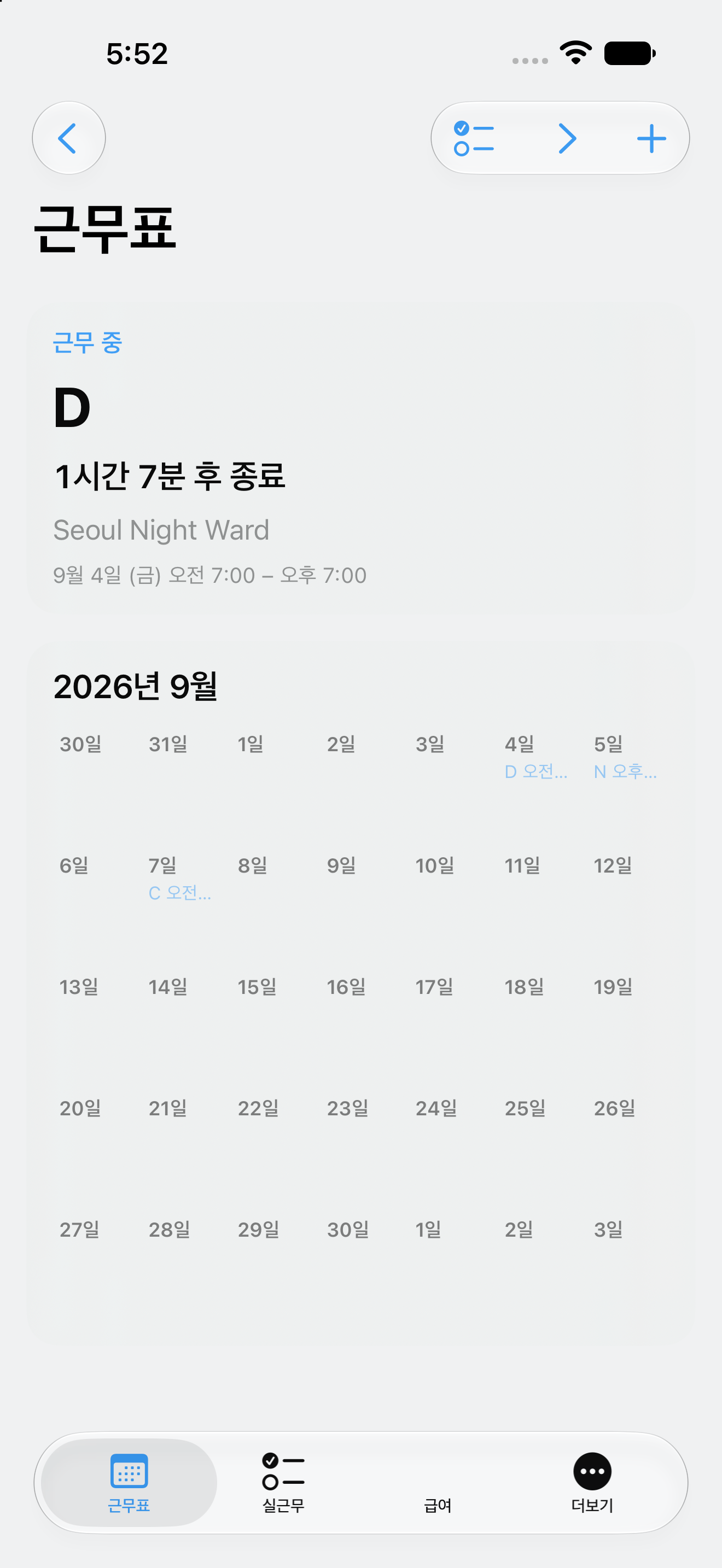
ShiftTotal stores personal schedules and actual work records on the device. There is no account, sign-in, or automatic synchronization. When you want to move or send data, you create a file yourself.
1. Create the first workplace
- On first launch, enter a workplace name, base hourly rate, and currency code.
- Continue saves the first workplace, pay profile, and a default shift template locally.
- Use More later to add or edit workplaces and templates.
Free continues to support the first workplace. Lifetime Pro unlocks additional workplaces.
2. Add shifts to the schedule
- Select a day in Schedule.
- Tap Edit to select multiple days.
- Apply a shift template to save planned shifts right away.
- Use Undo to reverse the most recent apply action.
The top schedule card is based on your stored active or next shift. It shows the shift, workplace, and start/end time.
3. Use a rotation
From More → Rotations, create the built-in Panama 2–2–3 pattern using the first template. The pattern calculates the needed future days rather than pre-saving thousands of dates.
4. Log actual work
- In Log, tap Clock in.
- Start and end a break to save each break segment separately.
- Tap Clock out to finish the actual-work session.
The planned shift is never overwritten. On relaunch, the app looks for an unfinished actual-work session.
5. Review a pay estimate and payslip
In Pay, review the workplace’s current pay period and pre-tax estimate. The calculation uses settings you provide, including a base rate, unpaid breaks, and a night differential.
When adding a payslip, enter the pay date, gross pay, and optional total hours manually. ShiftTotal compares those values with the recorded estimate and labels the result as an item to review. It does not determine tax, legality, or an employer’s payroll obligation.
6. Export files
From More → Backup & export, create:
- ICS: a schedule file that another calendar app can import
- CSV: raw schedule data for analysis
- PDF: a readable schedule report
.shifttotal: a full backup of settings, shifts, actual work, and pay-related records
Choose the destination or system share option yourself. ShiftTotal does not upload a file automatically.
7. Restore a backup
- In Backup & export, choose a backup file.
- Review the file check and record count.
- Choose Merge newer records or Replace all local data.
Merge retains the newer local record when the same UUID is already newer on this device. Replace removes local records before importing the selected backup, so create and keep a fresh backup first.
8. Lifetime Pro and Restore Purchases
Lifetime Pro is a one-time non-consumable purchase. There are no monthly or annual renewal plans. If you have bought it before, use More → Lifetime Pro → Restore Purchases. Your core Free records and an already verified Pro state remain usable while offline.
Troubleshooting
The backup will not open
Check that the .shifttotal file finished downloading. ShiftTotal refuses a file with an invalid checksum or unsupported format.
My data is not on the new device
There is no automatic cross-device replication. Create a full backup on the original device and choose that file on the new device.
The estimate differs from my payslip
The difference is something to review. Check actual clock-in/out and break times, the pay period, and rules that you entered.