
LowBeam
LowBeam Manual
LowBeam manual for starting headache records, LowBeam Mode, History, Insights, and PDF and CSV exports.
1. First-time setup
- Choose a recording method and a pain-severity display method on first launch.
- Frequently used medication is optional. You can start a record without adding it.
- Records stay on this device without an account. Core recording works even if you do not allow notifications.
2. Start a headache record
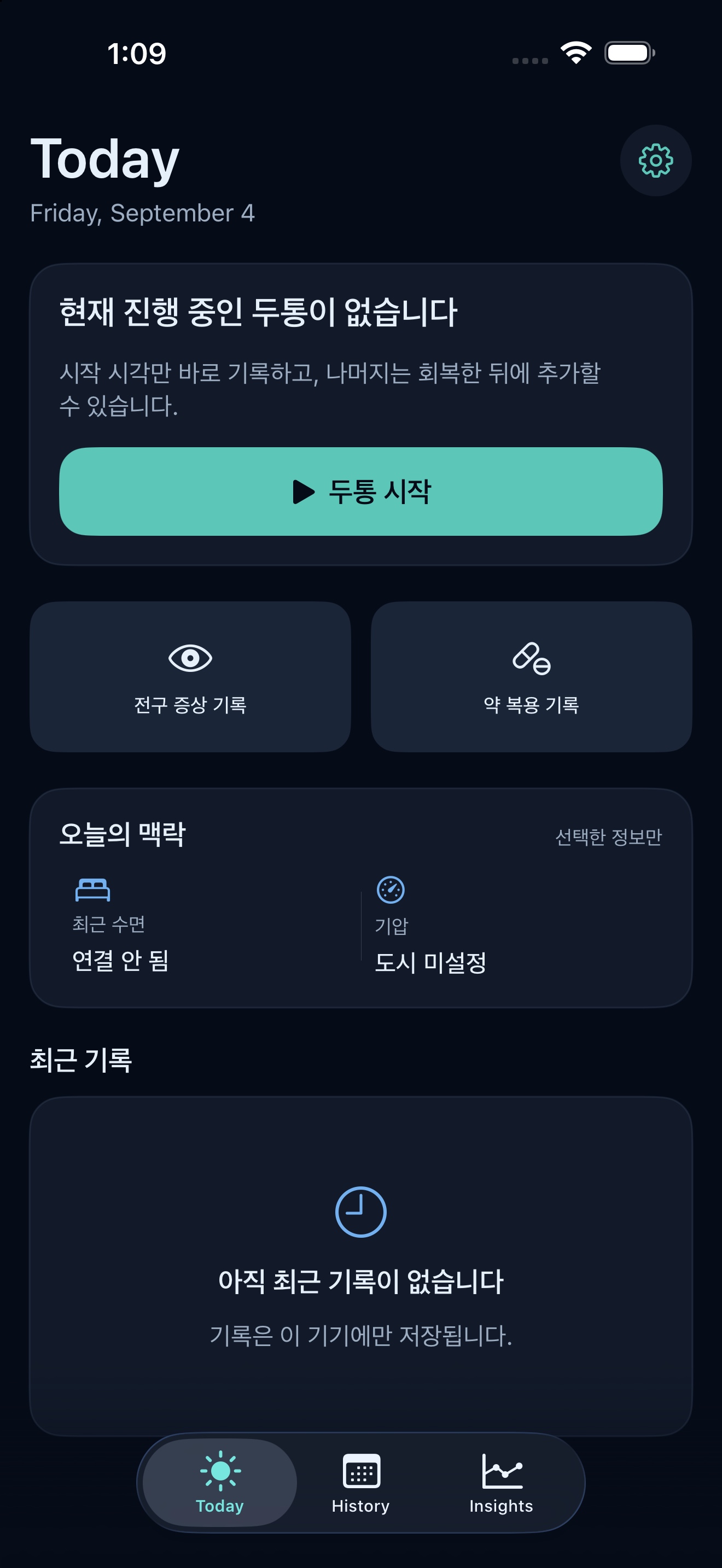
- Open the Today tab.
- Tap Start headache once.
- LowBeam Mode opens immediately. You can leave the details empty for now.
3. Log quickly in LowBeam Mode
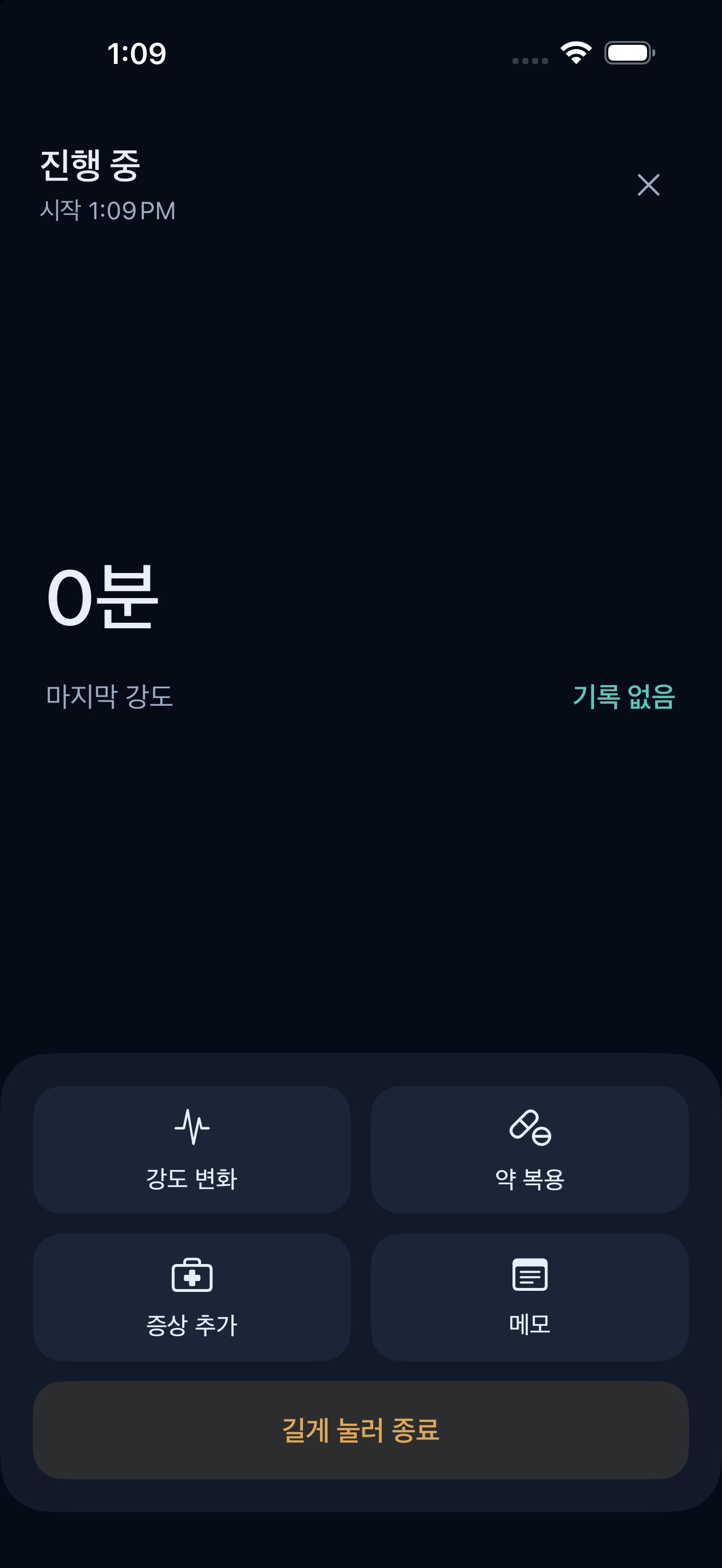
- Severity: Record the current pain using a number or your selected severity method.
- Medication: Record a medication name and dose. LowBeam does not recommend doses or intervals.
- Symptoms: Briefly record aura or accompanying symptoms.
- Notes: Add facts you may want to remember later, such as light, screens, or activity.
4. Finish a record
- Press and hold Press and hold to finish.
- Confirm the end time and duration.
- Add details immediately or choose Later to complete them in History.
5. Review History
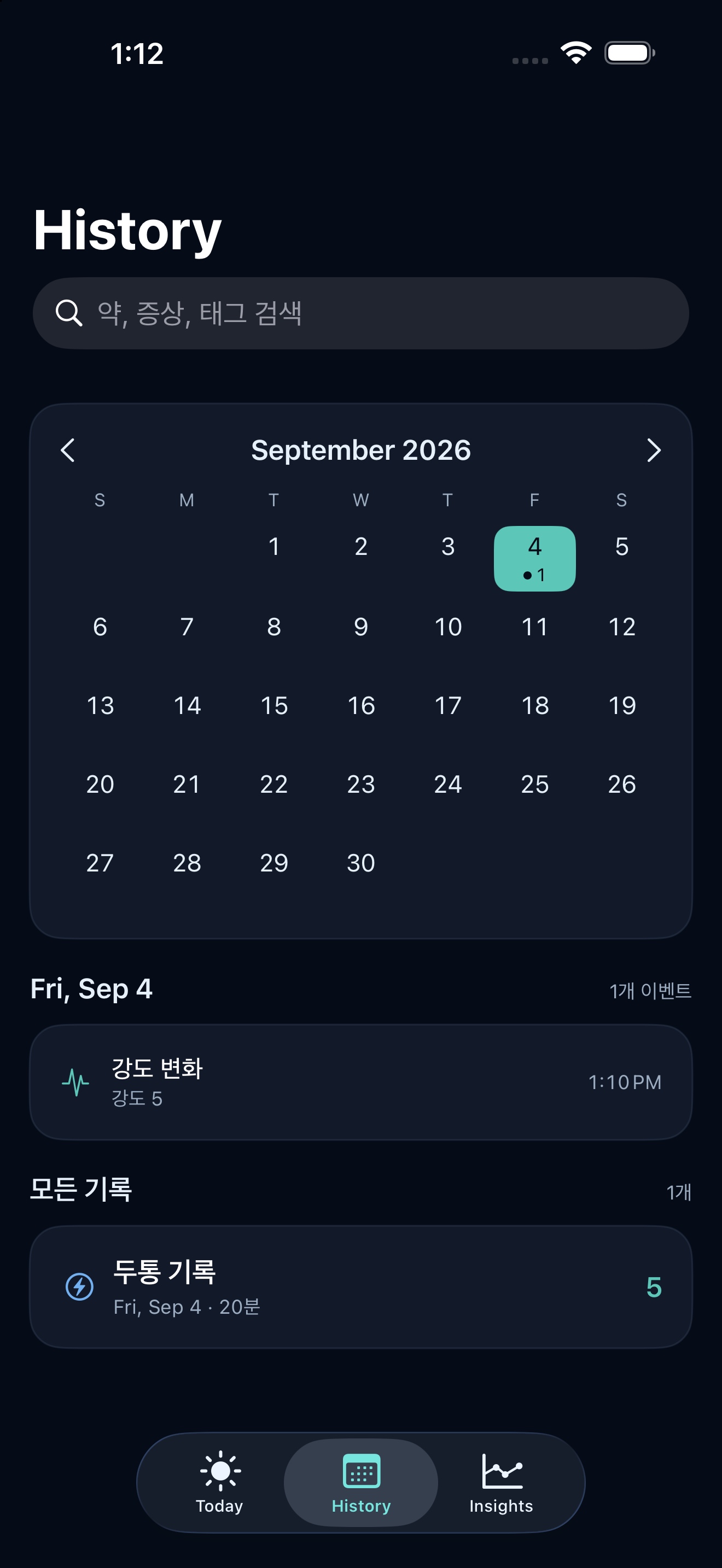
- Choose a date in the History tab.
- Tap a card to review the record's start and end times and chronological events.
- Check each chronological event for the details you need.
6. Insights and reports
- Choose 30 days, 90 days, or one year in Insights.
- Review headache days, record counts, medication days, average severity, and duration.
- Use Create a clinician report to create a PDF summary or CSV data export.
- Sharing starts only in an app you select.
7. Data and notifications
- On iPhone, the app can request notification permission in Settings. Declining it does not stop core recording.
- The current version does not provide automatic sleep or weather integrations, preventive-medication schedule reminders, or server sync.
- On iPhone, you can delete all local records in Settings. Export any CSV you need first.
8. Get help
- If a record does not appear, reopen the app and check the date in History.
- If you cancel from the share sheet while creating a PDF or CSV, the file is not sent off the device.
- If the issue continues, send your device model, OS version, app version, and steps to reproduce through Support. You do not need to attach sensitive health records.