1. Plan
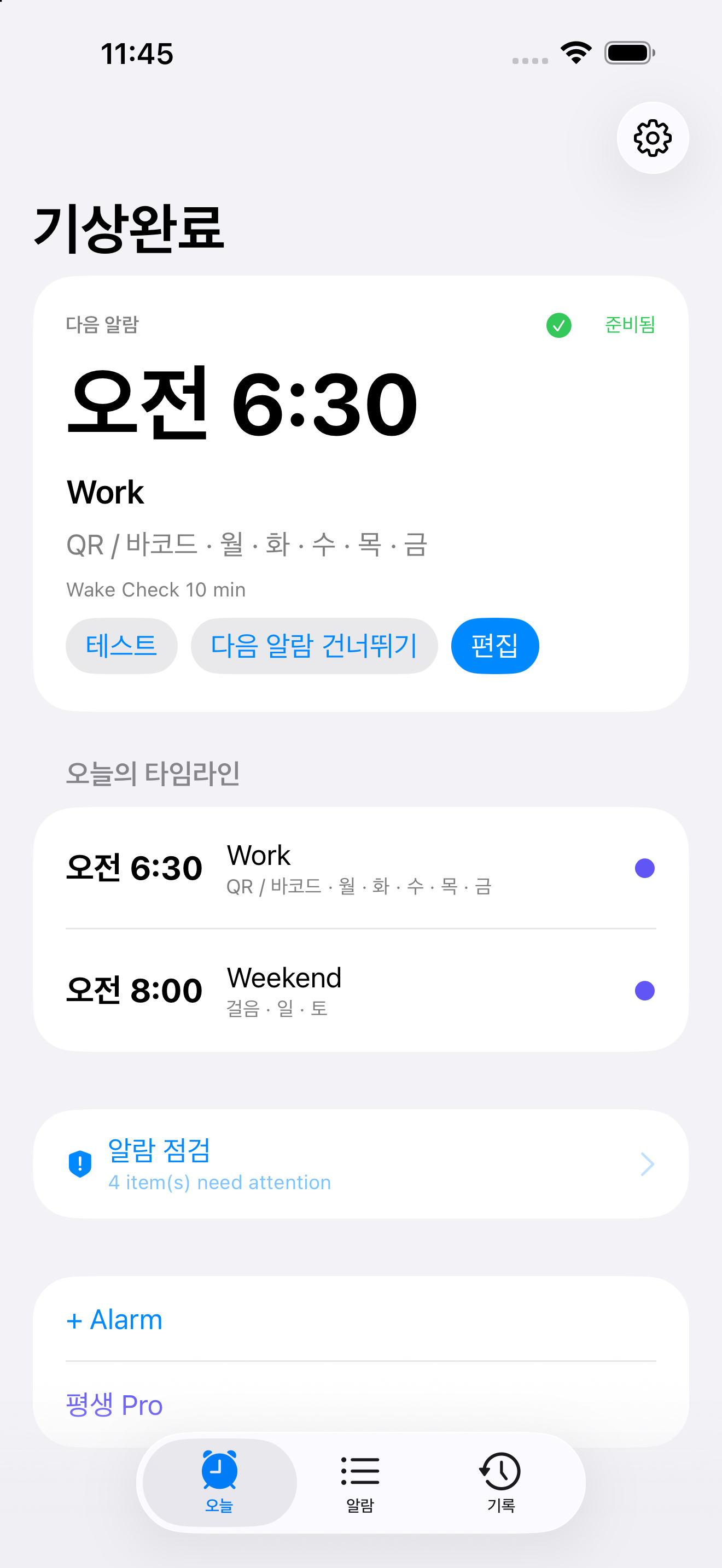
The next occurrence
Time, repeat days, mission, and selected follow-up stay distinct.
 WakeDone
Mission alarm
Choose the next occurrence before sleep, try the alarm and mission separately, then follow the planned mission or an available basic recovery path.
iOS release is under review or testing · Available on Android
1. Plan
2. Test
3. Recover
4. Record
Prepare the next wake-up
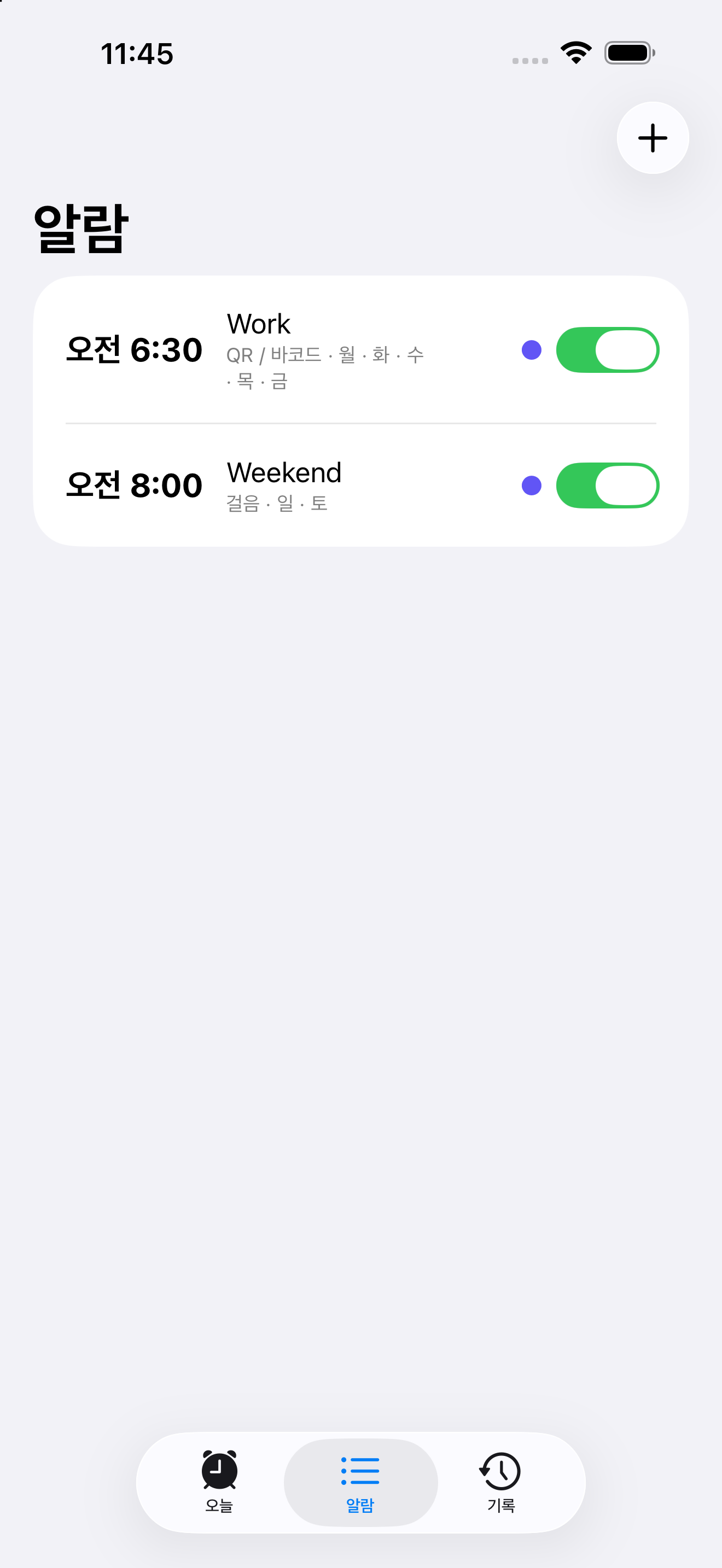
Choose a time, repeat days, and a mission. WakeDone keeps the next occurrence, its chosen mission, and any follow-up you select in one place. You can change just the next occurrence without replacing the regular schedule.
A mission response is an in-app record. It is not a measurement of wakefulness or a promise that an alarm will be heard in every device condition.
Test and practise separately
Free 10-second test
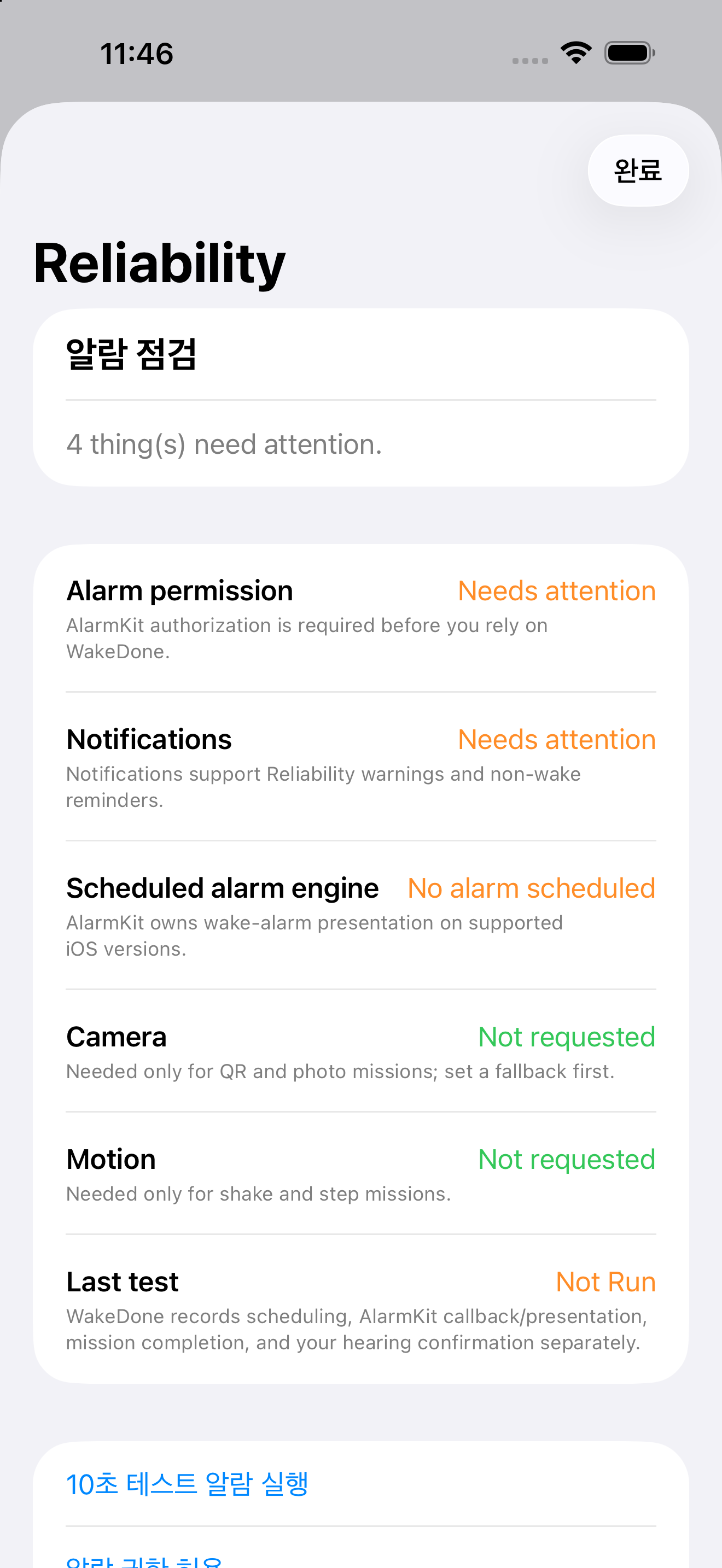
Use the selected alarm settings for a short sound test and practise the mission with its current requirements. Scheduling, presentation, a hearing confirmation, and mission completion are kept separate.
Permissions, sound settings, battery state, and operating-system behavior can affect alarm delivery. A readiness result describes the conditions WakeDone can review; it does not guarantee that an alarm will ring or that you will wake up.
Basic recovery stays free
Available basic alternative
If a camera, sensor, or registered QR is unavailable, choose an available basic mission to continue the current attempt. This basic recovery does not ask you to prove the problem or make a purchase.
Preselected custom fallback rules and Mission Chain remain optional Lifetime Pro tools. Basic recovery records its own path rather than pretending the original mission was completed.
Bounded follow-up and a clear exit
Wake Check · Lifetime Pro
Wake Check records only whether you respond. It does not measure wakefulness or sleep. Its basic behavior is one check with a 90-second response window and, at most, one re-alert; no response remains a no-response record.
Free Safety Exit ends only the current occurrence and its linked snoozes and Wake Check. Separate alarms and the next repeat stay scheduled. It can be used repeatedly without punishment, extra tasks, review requests, or payment.
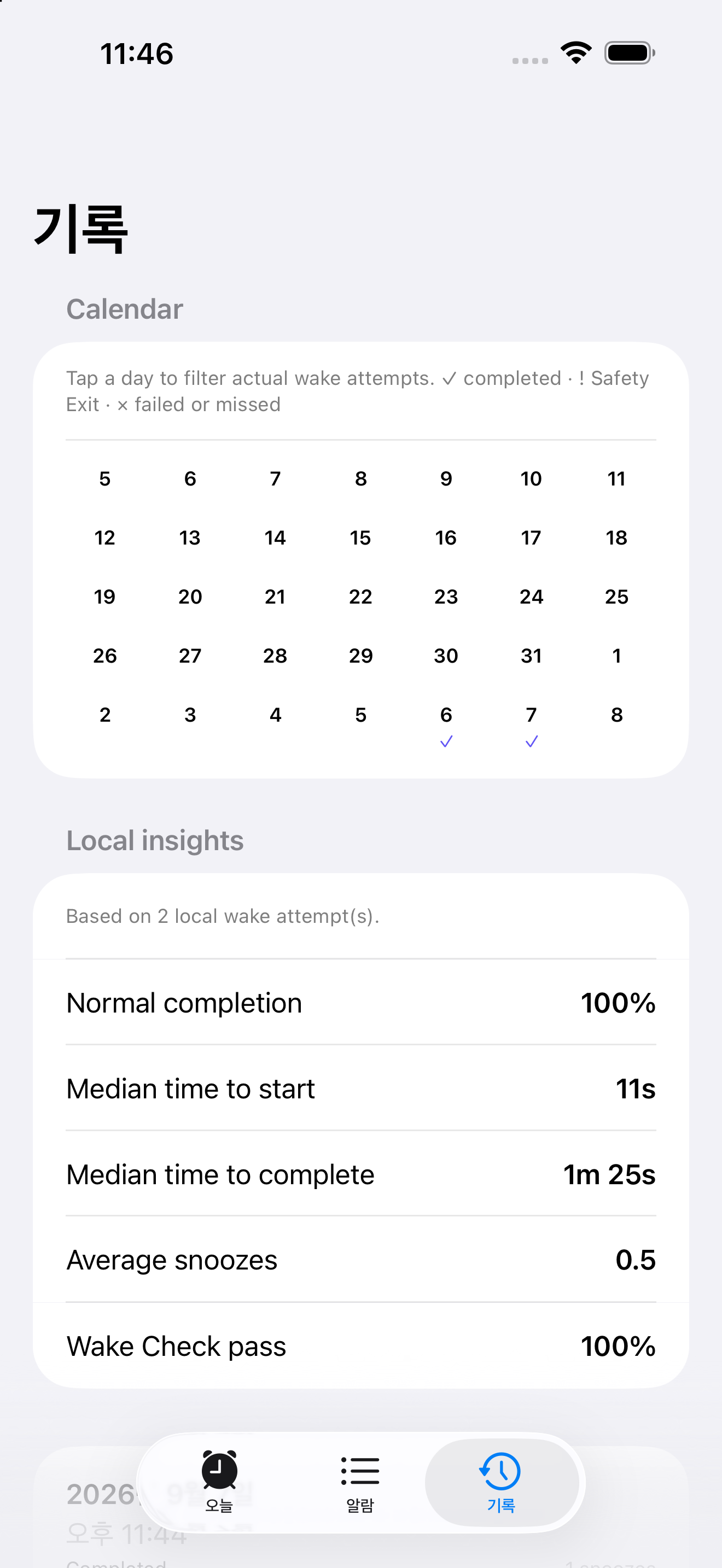
Local, factual history
Full raw wake-up records can be viewed, deleted, and exported for free. The record distinguishes original completion, basic recovery, Safety Exit, and a follow-up response instead of treating them as the same result.
Basic backup is available. QR reference values are excluded by default and are included only when you explicitly choose that option. Restored alarms arrive disabled for review, and Photo Match references must be registered again on the new device.
Optional Lifetime Pro
One-time purchase
Lifetime Pro adds more active alarms, additional missions, Mission Chain, preselected custom fallback, advanced snooze, Quiet Window, and Wake Check.
Pro also adds 30- and 90-day comparisons and advanced statistics. It does not restrict access to your full raw history, deletion, export, basic recovery, or Safety Exit.
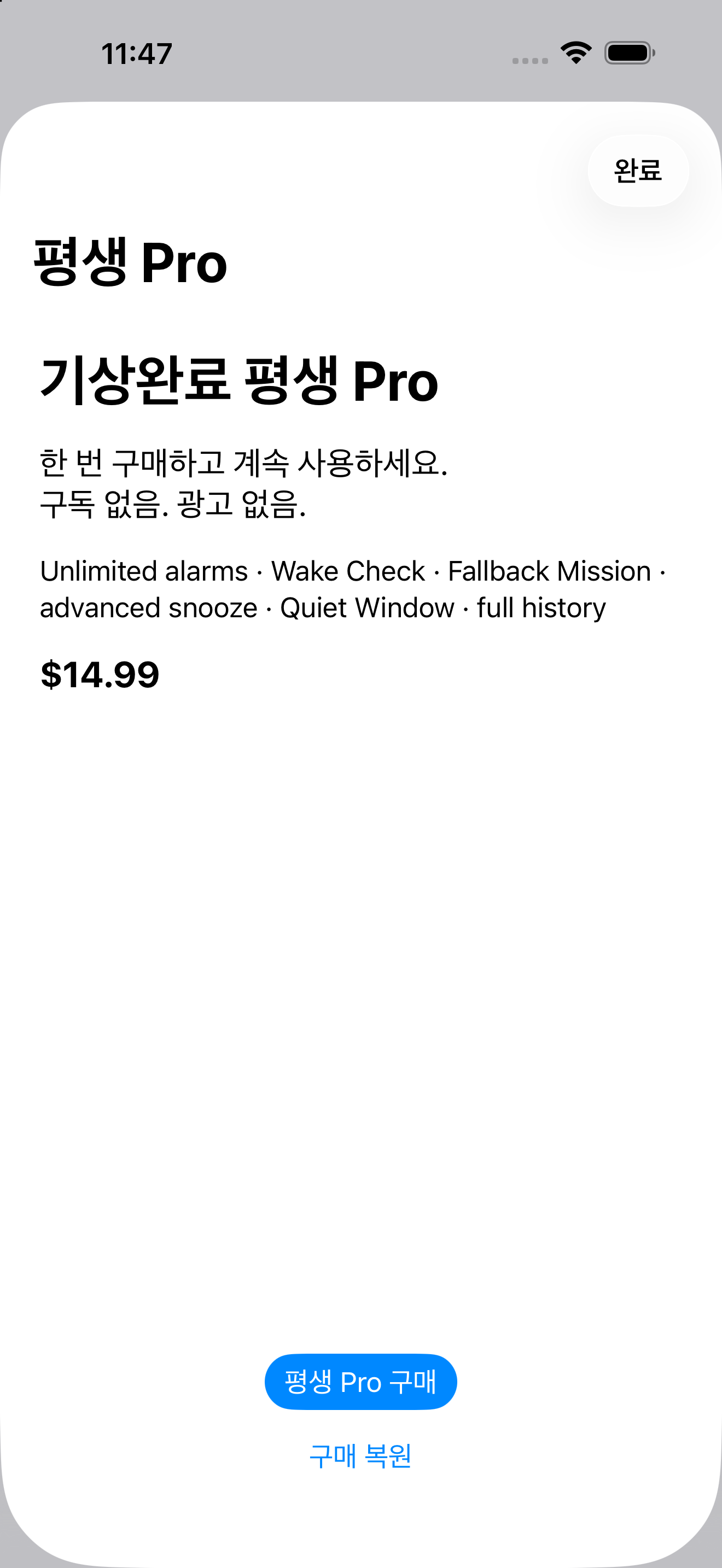
One-time purchase
WakeDone has no ads or monthly or annual subscription. A public store price and purchase availability are shown only by the relevant store when released.
Free
Lifetime Pro
Purchases and restores are handled by the relevant platform store. WakeDone does not use a shared account or entitlement server.
FAQ
No. Mission completion and Wake Check responses are app interactions. Permissions, sound, battery, and operating-system behavior can affect delivery, and the app does not measure wakefulness.
Use an available basic mission to continue the current attempt without a purchase. Preselected custom fallback rules are an optional Lifetime Pro feature.
It ends the current occurrence and only its linked snoozes and Wake Check. Separate alarms and future repeats remain scheduled. Repeated use never adds a penalty, task, review request, or charge.
It is an optional Lifetime Pro follow-up: one check, a 90-second response window, and at most one re-alert. A missed response stays a missed-response record, not a conclusion about sleep.
Privacy and support
Alarm rules, records, and mission progress stay on your device unless you explicitly choose a backup, export, or share action. QR reference values are excluded from backups by default.